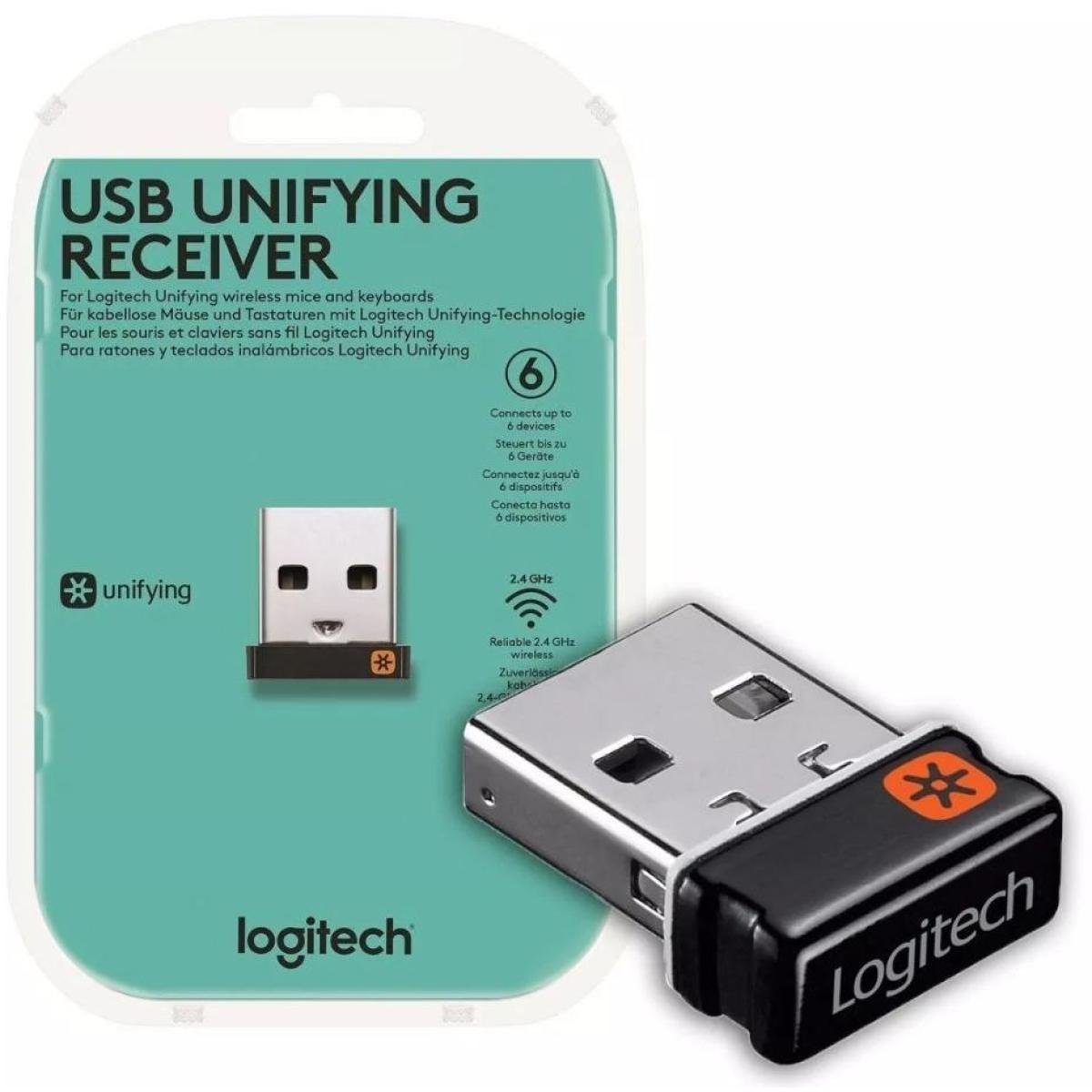

The Logitech Unifying Receiver is one of the most convenient wireless technologies developed for computer users who want a clutter-free workspace. Instead of plugging multiple USB receivers into your laptop or desktop, this tiny USB adapter allows you to connect multiple compatible Logitech devices using just one receiver.
Whether you use a wireless mouse, keyboard, or both, the Logitech Unifying Receiver simplifies your setup while improving productivity and saving valuable USB ports.
In this guide, you’ll learn everything you need to know about the logitech unifying receiver, including compatibility, setup instructions, benefits, troubleshooting, and whether it’s worth buying in 2026.
What Is a Logitech Unifying Receiver?
A Logitech Unifying Receiver is a compact USB wireless receiver designed by Logitech. It operates on the reliable 2.4 GHz wireless frequency and allows users to pair up to six compatible Logitech wireless devices with a single USB receiver.
Unlike traditional wireless receivers that work with only one specific device, the Unifying Receiver offers flexibility by supporting multiple compatible peripherals simultaneously.
Its compact design also means you can leave it plugged into your laptop while traveling without worrying about damaging the USB port.
Key Features of Logitech Unifying Receiver
The popularity of the Logitech Unifying Receiver comes from its practical features.
Connect Up to Six Devices
One receiver can pair with:
- Wireless mice
- Wireless keyboards
- Number pads
- Presentation remotes
- Compatible trackballs
This reduces USB port usage significantly.
Reliable Wireless Connection
The receiver uses Logitech’s advanced 2.4 GHz wireless technology, providing:
- Stable performance
- Minimal input lag
- Reduced interference
- Long wireless range
Most users experience reliable connectivity up to approximately 10 meters (33 feet).
Compact Nano Design
The receiver is extremely small, making it ideal for:
- Laptops
- Business travel
- Portable workstations
- Home offices
Many users leave it plugged in permanently.
Easy Device Management
With Logitech software, users can easily:
- Pair new devices
- Remove paired devices
- Monitor battery status
- Customize supported hardware
Which Logitech Devices Are Compatible?
Not every Logitech wireless product supports the Unifying Receiver.
Compatible devices typically feature the orange Unifying logo printed on:
- The receiver
- Product packaging
- Bottom of the mouse
- Keyboard label
Popular compatible products include:
- Logitech M185 (selected versions may vary)
- Logitech M510
- Logitech M705 Marathon Mouse
- Logitech MX Anywhere (older Unifying versions)
- Logitech K270
- Logitech K350
- Logitech K780
- Logitech Wireless Combo MK540
Always verify compatibility before purchasing.
How to Identify a Genuine Unifying Device
Many people confuse Logitech’s wireless technologies.
A genuine Unifying-compatible device usually has:
- Orange six-point star logo
- “Unifying” label
- Support listed in Logitech specifications
Devices using Logi Bolt cannot pair with a Unifying Receiver because they use different wireless technologies.
How to Set Up a Logitech Unifying Receiver
Setting up the receiver only takes a few minutes.
Step 1: Plug In the Receiver
Insert the USB receiver into an available USB port.
Windows, macOS, and many Linux distributions automatically detect the receiver.
Step 2: Install Logitech Software
Download Logitech’s pairing software or Logitech Options/Options+.
The software enables new device pairing.
Step 3: Turn On Your Device
Power on the mouse or keyboard.
Ensure batteries are installed correctly.
Step 4: Pair the Device
Open the Logitech software.
Follow the pairing wizard until your device connects successfully.
Step 5: Test Functionality
Move the mouse or type on the keyboard to verify proper operation.
Benefits of Using One Receiver
Using a Logitech Unifying Receiver offers several practical advantages.
Saves USB Ports
Modern ultrabooks often have only two USB ports.
Using one receiver instead of several frees valuable ports.
Cleaner Workspace
Fewer receivers mean:
- Less cable clutter
- Better desk organization
- Easier device management
Easy Replacement
If you lose your original receiver, you can purchase another Unifying Receiver and reconnect compatible devices without replacing the entire mouse or keyboard.
Better Travel Experience
Business travelers appreciate carrying only one receiver for multiple devices.
Reliable Daily Performance
The wireless signal remains stable even in busy office environments.
Logitech Unifying Receiver vs Logi Bolt
Many buyers wonder about the differences.
| Feature | Logitech Unifying | Logi Bolt |
|---|---|---|
| Wireless Technology | 2.4 GHz | Secure Bluetooth-based technology |
| Maximum Devices | Up to 6 | Up to 6 |
| Security | Standard encryption | Enhanced enterprise-grade security |
| Compatibility | Older Logitech devices | Newer Logitech business devices |
| Cross Compatibility | No | No |
These receivers are not interchangeable.
Common Problems and Solutions
Although reliable, users occasionally encounter connection issues.
Receiver Not Detected
Possible causes:
- Faulty USB port
- Driver issues
- Damaged receiver
Solution:
- Try another USB port.
- Restart your computer.
- Update Logitech software.
Mouse Not Pairing
Check:
- Battery level
- Device compatibility
- Pairing mode
Sometimes removing and re-pairing the device resolves the issue.
Keyboard Stops Responding
Possible fixes:
- Replace batteries.
- Reduce wireless interference.
- Reconnect using Logitech software.
Cursor Lag
Improve performance by:
- Moving the receiver closer.
- Using a USB extension cable.
- Keeping the receiver away from Wi-Fi routers.
Can You Use Multiple Receivers?
Yes.
Some users maintain:
- One receiver for desktop
- One for laptop
Compatible devices can be paired with different receivers when needed.
Security Features
The Logitech Unifying Receiver includes encrypted wireless communication designed to protect data transmitted between your wireless peripherals and computer.
For home users, this provides dependable security for everyday use.
Organizations requiring stricter security policies often choose Logitech’s newer Logi Bolt technology.
Is the Logitech Unifying Receiver Still Worth Buying?
Despite newer wireless technologies, the Logitech Unifying Receiver remains an excellent option because:
- Millions of compatible devices remain in use.
- Setup is simple.
- Replacement receivers are inexpensive.
- Performance remains highly reliable.
- It helps reduce USB receiver clutter.
If you already own compatible Logitech accessories, purchasing a replacement or spare Unifying Receiver is often more cost-effective than replacing all your peripherals.
Tips for Better Performance
For the best experience:
- Keep batteries fresh.
- Avoid placing the receiver behind metal objects.
- Update Logitech software regularly.
- Pair only compatible devices.
- Store a spare receiver if you travel frequently.
- Minimize wireless interference from nearby electronics.
Following these practices helps ensure smooth and uninterrupted performance.
Why Professionals Choose the Logitech Unifying Receiver
Professionals working in offices, remote work environments, or hybrid setups often prefer the Logitech Unifying Receiver because of its reliability and simplicity.
Increased Productivity
Instead of troubleshooting multiple wireless receivers or Bluetooth pairing issues, users can focus on their work. The receiver automatically reconnects compatible devices after restarting the computer, reducing downtime.
Ideal for Multi-Device Workstations
Many professionals use:
- A wireless keyboard
- A wireless mouse
- A wireless numeric keypad
- A presentation clicker
With a standard wireless setup, each accessory would require its own receiver. The Logitech Unifying Receiver simplifies this by supporting several devices at once.
Excellent for Laptop Users
Modern laptops frequently have only one or two USB-A ports. By connecting multiple peripherals through a single receiver, users can reserve the remaining ports for storage devices, monitors, or charging accessories.
Logitech Unifying Software Features
To unlock the full potential of your Unifying Receiver, Logitech provides dedicated software that makes device management simple.
Some of the available features include:
Easy Pairing
The software guides users through the pairing process step by step, ensuring a quick and hassle-free setup.
Device Management
Users can view all currently connected devices and remove unused peripherals when necessary.
Firmware Updates
Keeping firmware updated helps improve compatibility, reliability, and security over time.
Battery Monitoring
Supported Logitech devices display their battery status within the software, helping users know when it’s time to replace or recharge batteries.
Device Customization
Depending on the model, users can customize buttons, scrolling behavior, keyboard shortcuts, and application-specific settings.
Logitech Unifying Receiver Compatibility Checklist
Before purchasing a replacement receiver, verify the following:
- Your mouse or keyboard displays the orange Unifying logo.
- The product specifications mention “Unifying Compatible.”
- Your device is not exclusively designed for Logi Bolt.
- The receiver is a genuine Logitech product rather than a third-party clone.
Checking compatibility beforehand helps avoid connection problems and unnecessary returns.
Tips for Maintaining Your Logitech Unifying Receiver
Although the receiver is built to last, proper care can extend its lifespan and maintain optimal performance.
Keep the USB Connector Clean
Dust and debris inside the USB connector can interfere with communication. Occasionally remove the receiver and gently clean the connector using a soft, dry cloth.
Avoid Physical Damage
Because the receiver is very small, avoid placing pressure on it while it’s plugged into your laptop. If you’re transporting your laptop in a tight bag, consider removing the receiver or using the storage compartment found in many Logitech mice.
Store Spare Receivers Safely
If you own multiple receivers, label them or keep them in separate storage cases to prevent confusion during pairing.
Replace Weak Batteries Promptly
Many connection problems are caused by low batteries rather than issues with the receiver itself. Replacing batteries regularly helps maintain a stable connection.
Common Mistakes to Avoid
Many users experience problems simply because of avoidable setup mistakes.
Avoid these common errors:
- Trying to pair Logi Bolt devices with a Unifying Receiver.
- Pairing incompatible Logitech products.
- Ignoring firmware updates.
- Using nearly depleted batteries.
- Placing the receiver behind large metal objects or desktop cases that can weaken the wireless signal.
- Assuming every Logitech wireless accessory supports Unifying technology.
By following the correct setup procedures, most connectivity issues can be prevented entirely.
Future of Logitech Wireless Technology
Logitech continues to develop advanced wireless solutions, including Logi Bolt for enhanced security and enterprise environments. However, the Unifying Receiver remains an important part of Logitech’s ecosystem because millions of compatible devices are still in daily use around the world.
For users who already own compatible peripherals, there is little reason to replace them solely because newer wireless technologies exist. The Unifying Receiver continues to deliver dependable performance, easy device management, and a convenient all-in-one wireless solution that meets the needs of most home and office users.
Whether you’re upgrading your workspace, replacing a lost receiver, or simply looking for a cleaner desktop setup, the Logitech Unifying Receiver remains a practical and cost-effective choice that combines convenience, reliability, and long-term usability.
Final Thoughts
The Logitech Unifying Receiver continues to be one of the most practical wireless solutions for users who own multiple Logitech peripherals. Its ability to connect up to six compatible devices through a single USB receiver makes it an efficient choice for home offices, workplaces, and travelers alike.
Although Logitech has introduced newer technologies like Logi Bolt, the Unifying Receiver remains highly relevant for millions of compatible keyboards, mice, and accessories. If your devices support it, this small USB receiver offers excellent convenience, dependable wireless performance, and an easy way to keep your workspace organized.
Frequently Asked Questions (FAQs)
1. How many devices can connect to a Logitech Unifying Receiver?
A single Logitech Unifying Receiver can connect up to six compatible Logitech wireless devices simultaneously.
2. Does every Logitech wireless mouse work with a Unifying Receiver?
No. Only devices displaying the Unifying logo are compatible. Always check the product specifications before pairing.
3. Can I replace a lost Logitech Unifying Receiver?
Yes. You can purchase a replacement Unifying Receiver and pair your compatible Logitech devices using Logitech’s pairing software.
4. Is the Logitech Unifying Receiver compatible with Logi Bolt devices?
No. Unifying and Logi Bolt use different wireless technologies and are not compatible with each other.
5. Does the receiver work with Windows and macOS?
Yes. The Logitech Unifying Receiver supports Windows, macOS, and many Linux distributions, though software features may vary by operating system.
6. What is the wireless range of the Logitech Unifying Receiver?
Under normal conditions, the receiver provides a reliable wireless connection of up to approximately 10 meters (33 feet).
7. Do I need Logitech software to use the receiver?
Basic functionality often works automatically, but Logitech software is recommended for pairing new devices, managing connections, and accessing advanced customization features.